OmniStudio Expression Set Action is a powerful feature in Salesforce Industries. It lets you make changes and make decisions based on rules in guided processes, like OmniScripts and Integration Procedures. Instead of writing rules in many places, you can define your business rules once in an Expression Set and use them wherever you need them. This improves consistency, reduces errors, and simplifies maintenance.
What Is an Expression Set Action?
An Expression Set Action acts as a bridge between:
- OmniScripts / Integration Procedures, and
- Expression Sets, which are part of the Business Rules Engine (BRE)
In simple terms:
- Your OmniScript or Integration Procedure sends inputs (like OrderValue or DeliveryType).
- The Expression Set processes this data using calculations, conditions, or lookups.
- The result is returned as a structured JSON output, which you can display or use for further logic.
What Can Expression Sets Do?
Expression Sets are Designed to Handle:
- Mathematical calculations
- Conditional logic (if/else situations)
- Lookups using decision matrices
- Data transformations
Common Real‑World Use Cases
- Calculating shipping or delivery charges.
- Determining customer eligibility.
- Applying discounts or fees.
- Computing taxes or surcharges
Because Expression Sets work with JSON, they are lightweight, fast, and ideal for complex rule processing.
Creating an Expression Set – Step by Step
Step 1: Navigate to Expression Sets
- Go to Salesforce Setup
- Search for Expression Sets (under OmniStudio / Industries features)
- Click New
Step 2: Basic Setup
- Name: Example – ShippingChargesExp
- Usage Type: Select Default
- Save the record
This automatically creates Version 1 of the Expression Set.
Building Logic Using Expression Set Builder
After saving, open the Expression Set Builder, which provides a visual canvas for designing logic.
Step 3: Define Variables (Resource Manager)
Variables represent the data your Expression Set uses and produces.
Example Variables:
- DeliveryType – Input (e.g., Standard or Express)
- OrderValue – Input (order amount)
- ExpectedDeliveryCharges – Intermediate result
- TotalCharges – Final output
Each Variable Should Have:
- A clear name
- Data type (number, text, boolean, etc.)
- Input or Output configuration
Step 4: Use Decision Matrices (Optional but Powerful)
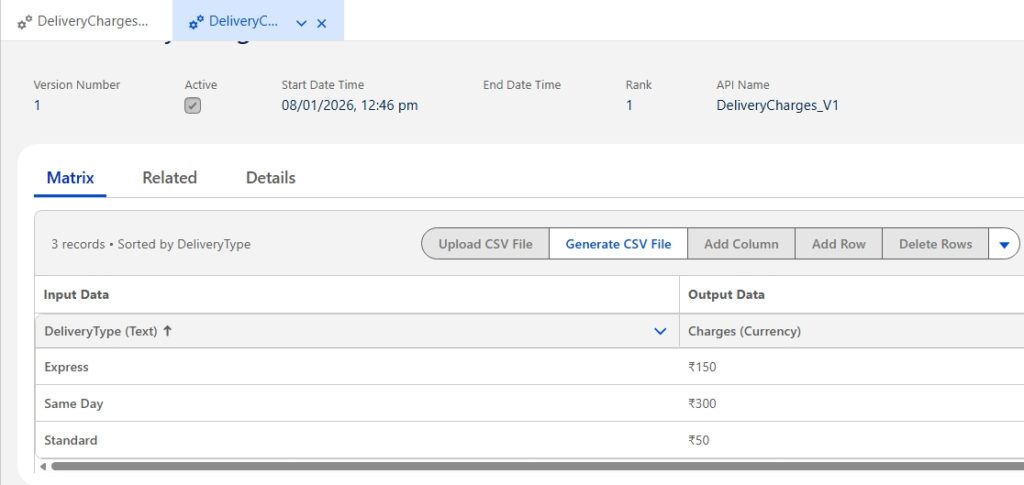
If your charges depend on predefined rules (for example, deliveryType), you can use a Decision Matrix.
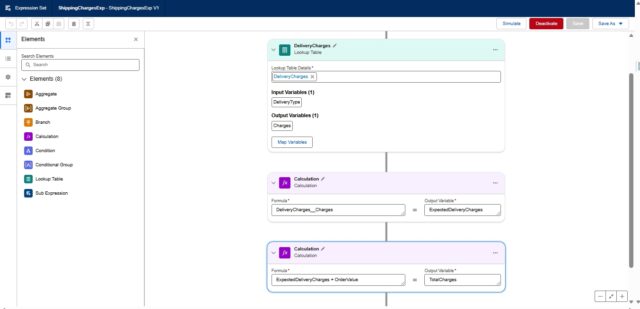
- Drag the Lookup Table element onto the canvas
- Associate it with an existing Decision Matrix, such as DeliveryCharges
- Use inputs like DeliveryType to return ExpectedDeliveryCharges
This keeps your logic external and easy to update without modifying the code.
Step 5: Add Calculations
To perform arithmetic operations:
- Drag the Calculation element from the Elements panel
- Define a formula such as:
TotalCharges = ExpectedDeliveryCharges + OrderValue

This element performs the actual math and stores the result in a variable.
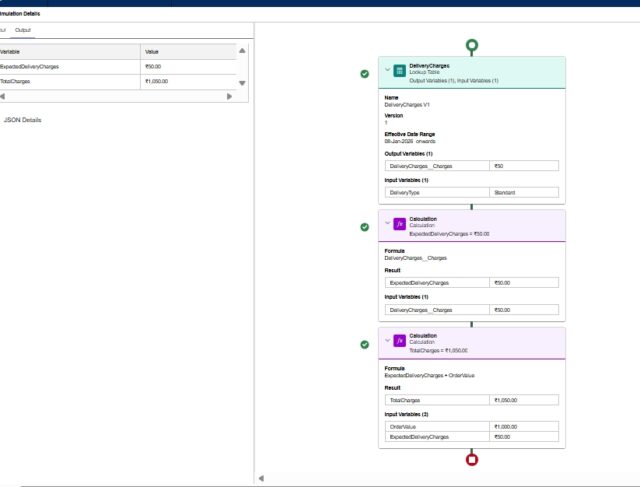
Step 6: Sequence and Test
- Arrange elements on the canvas in logical order
- Use the Simulate option to test with a sample JSON input:
Step 7: Activate the Expression Set
Before using it:
- Set Active Start Date
- Define Rank (for rule priority)
- Select Output Variables
- Click Activate
Your Expression Set is now ready for use.
Using Expression Set Action in an OmniScript
OmniScripts are user-facing guided flows, and Expression Set Actions allow logic to run automatically in the background.
Step 1: Prepare Inputs
In the OmniScript:
- Create fields such as DeliveryType and OrderValue
- Capture values from user input or previous steps
Step 2: Add Expression Set Action
- Open OmniScript Designer
- Drag Expression Set Action between steps
- Select your Expression Set (ShippingChargesExp)
Step 3: Configure Input Mapping
Map inputs using JSON paths, for example:
- %Step:CustomerDetails:DeliveryType%
- %Step:CustomerDetails:OderValue%
Step 4: Use Output Values
In the next step:
- Use Set Values or Display Text elements
- Reference returned outputs like TotalCharges
Step 5: Test
Preview the OmniScript with different inputs to ensure calculations work correctly.
Using Expression Set Action in an Integration Procedure
Integration Procedures handle server-side processing and are ideal for performance-heavy logic.
Step 1: Create Integration Procedure
- Go to Integration Procedures
- Click New
- Add an Expression Set Action from the Actions palette
Step 2: Configure the Action
- Select the Expression Set
- Map inputs such as DeliveryType and OrderValue
Step 3: Return Outputs
- Add a Response Action
- Include output variables
- Save and execute to validate results
Step 4: Call from OmniScript
Use an Integration Procedure Action inside OmniScript to invoke this logic.
This approach improves scalability and keeps OmniScripts lightweight.
Key Learning Resources
If you’re new to OmniStudio, these resources are highly recommended: