
This blog explains the process of building a custom search vertical in SharePoint Online that targets a specific list using a dedicated content type. It covers indexing important columns, and mapping them to managed properties for search. Afterward, a result type is configured with Adaptive Cards JSON to display metadata like title, category, author, and published date in a clear, modern format. Then we will have a new vertical on the hub site, giving users a focused tab for Article results. In last, the result is a streamlined search experience that highlights curated content with consistent metadata and an engaging presentation.
For example, we will start with the assumption that a custom content type is already in place. This content type includes the following columns:
- Article Category – internal name article_category
- Article Topic – internal name article_topic
We’ll also assume that a SharePoint list has been created which uses this content type, with the ContentTypeID: 0x0101009189AB5D4FBA4A9C9BFD5F3F9F6C3B
With the content type and list ready, the next steps focus on configuring search so these items can be surfaced effectively in a dedicated vertical.
Index Columns in the List
Indexing columns optimize frequently queried metadata, including category or topic, for faster search.. This improves performance and makes it easier to filter and refine results in a custom vertical.
- Go to List Settings → Indexed Columns.
- Ensure article_category and article_topic are indexed for faster search queries.
Create Managed Properties
First, check which RefinableString managed properties are available in your environment. After you identify them, configure them as shown below.:
| Refinable string | Field name | Alias name | Crawled property |
|---|---|---|---|
| RefinableString101 | article _topic | ArticleTopic | ows_article _topic |
| RefinableString102 | article_category | ArticleCategory | ows_article_category |
| RefinableString103 | article_link | ArticleLink | ows_article_link |
Tip: Creating an alias name for a managed property makes it easier to read and reference. This step is optional — you can also use the default RefinableString name directly.

To configure these fields, follow the steps below:
- Go to the Microsoft Search Admin Center → Search schema.
- Go to Search Schema → Crawled Properties
- Look for the field (ex. article _topic or article_category), find its crawled property (starts with ows_)
- Click on property → Add mapping
- Popup will open → Look for unused RefinableString properties (e.g., RefinableString101, RefinableString102) → click “Ok” button
- Click “Save”
- Likewise, create managed properties for all the required columns.
Once mapped, these managed properties can be searched, found, and defined. This means they can be used in search filters, result types, and areas.
Creating a Custom Search Vertical
This lets you add a dedicated tab that filters results to specific content, improving findability and user experience. It ensures users quickly access targeted items like lists, libraries, or content types without sifting through all search results. In this example, we will set the filter for a specific articles list.
This lets you add a dedicated tab that filters results to specific content, improving findability and user experience. It ensures users quickly access targeted items like lists, libraries, or content types without sifting through all search results. In this example, we will set the filter for a specific articles list.
Following the steps given below to create and configure a custom search vertical from the admin center:
- Go to admin center, https://admin.cloud.microsoft
- Settings → Search & intelligence
- Under Customizations, select verticals
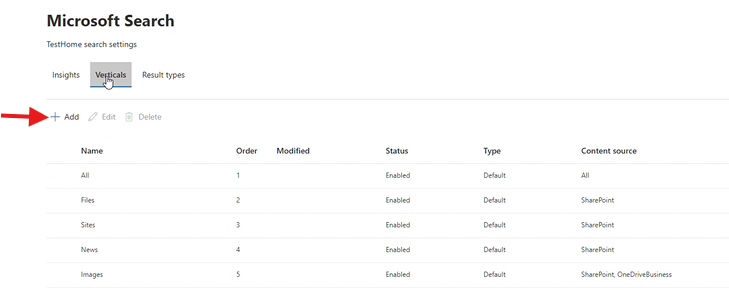
- In “Verticals” tab, add a new value as per following configuration:
- Name = “Articles”
- Content source = SharePoint and OneDrive
- KQL query = It is the actual filter where we specify the filter for items from the specific list to display in search results. In our example, we will set it as: ContentTypeId:0x0101009189AB5D4FBA4A9C9BFD5F3F9F6C3B*
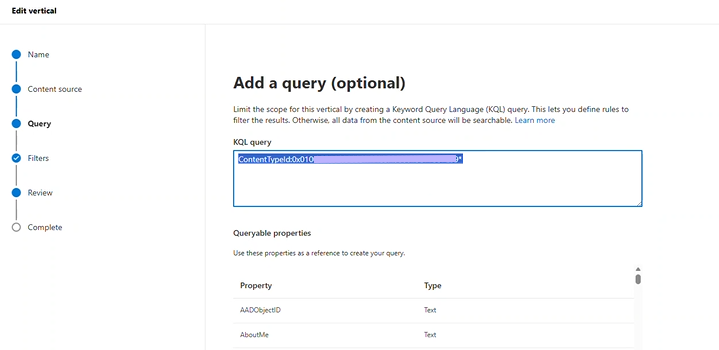
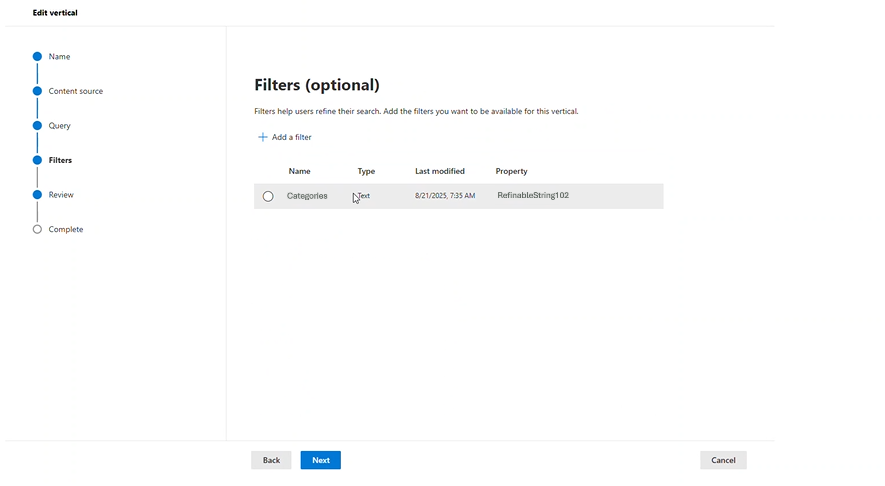
- Filters: Filters are an optional setting that allows users to narrow search results based on specific criteria. In our example, we can add a filter by category. To add “Categories” filter on search page, follow below steps:
- Click on add filter
- Select “RefinableString102” (This is a refinable string managed property for “article_category” column as setup in above steps)
- Name = “Category” or other desired string to display on search
Creating a Result Type
Creating a new result type in the Microsoft Search Admin Center lets you define how specific content (like items from a list or a content type) is displayed in search results. In this example, we set some rules and use Adaptive Card template to make search easier and more interesting.
Following are the steps to create a new result type in the admin center.
- Go to admin center, https://admin.cloud.microsoft
- Settings → Search & intelligence
- In “Customizations”, go to “Result types”
- Add new result types with the following configurations:
- Name = “AarticlesResults” (Note: Specify any name you want to display in search vertical)
- Content source = SharePoint and OneDrive
- Rules
- Type of content = SharePoint list item
- ContentTypeId starts with 0x0101009189AB5D4FBA4A9C9BFD5F3F9F6C3B (Note: Content type Id created in above steps)
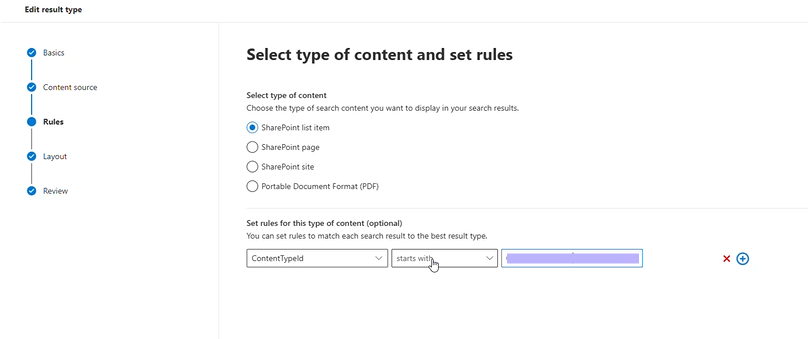
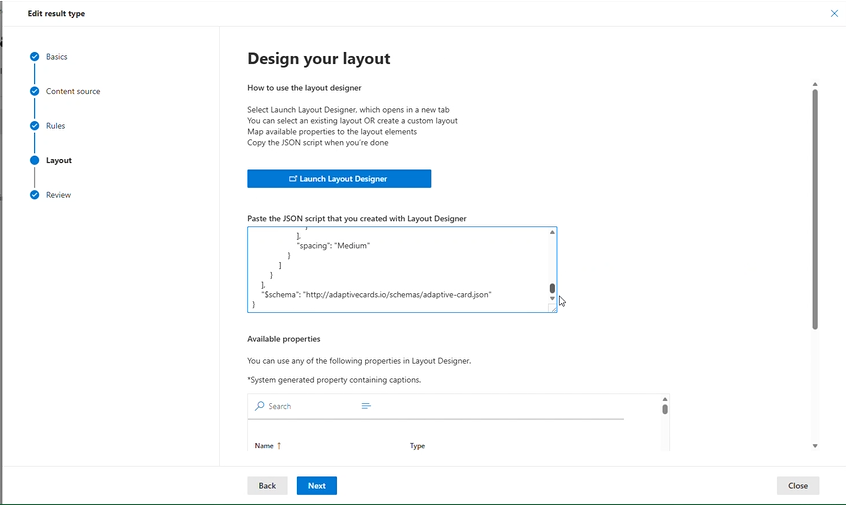
- Layout = Put the JSON string for Adaptive card to display search result. Following is the JSON for displaying the result:
{
   "type": "AdaptiveCard",
  "version": "1.3",
  "body": [
    {
      "type": "ColumnSet",
      "columns": [
        {
          "type": "Column",
          "width": "auto",
          "items": [
            {
            "type": "Image",
            "url": <url of image/thumbnail to be displayed for each displayed item>,
            "altText": "Thumbnail image",
            "horizontalAlignment": "Center",
            "size": "Small"
            }
          ],
          "horizontalAlignment": "Center"
        },
        {
          "type": "Column",
          "width": 10,
          "items": [
            {
              "type": "TextBlock",
              "text": "[${ArticleTopic}](${first(split(ArticleLink, ','))})",
              "weight": "Bolder",
              "color": "Accent",
              "size": "Medium",
              "maxLines": 3
            },
            {
              "type": "TextBlock",
              "text": "**Category:** ${ArticleCategory}",
              "spacing": "Small",
              "maxLines": 3
            }
          ],
          "spacing": "Medium"
        }
      ]
    }
  ],
  "$schema": "http://adaptivecards.io/schemas/adaptive-card.json"
}
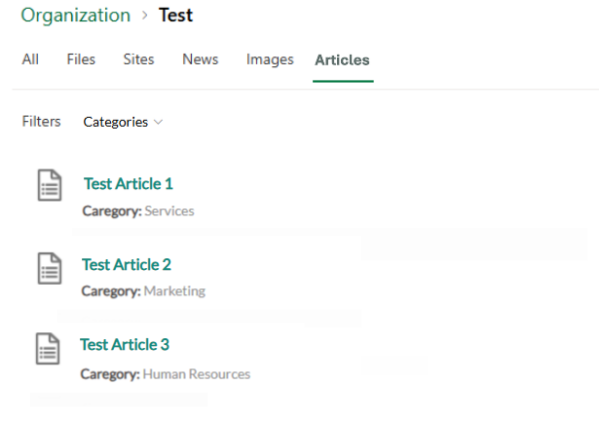
When you set up everything properly, the final output will look like this:
Conclusion
Finally, we created a special search area in SharePoint Online for list items with adaptive cards. This changes how users use search. Important metadata becomes clearly visible when you index key columns, map them to managed properties, and design a tailored result type. Since we used Adaptive Card, it adds a modern, interesting presentation layer. It makes it easier to scan and more visually appealing. In the end, publishing a special section gives you a special tab that lets you access a special list of content. This makes it easier to work with and makes the user experience better.