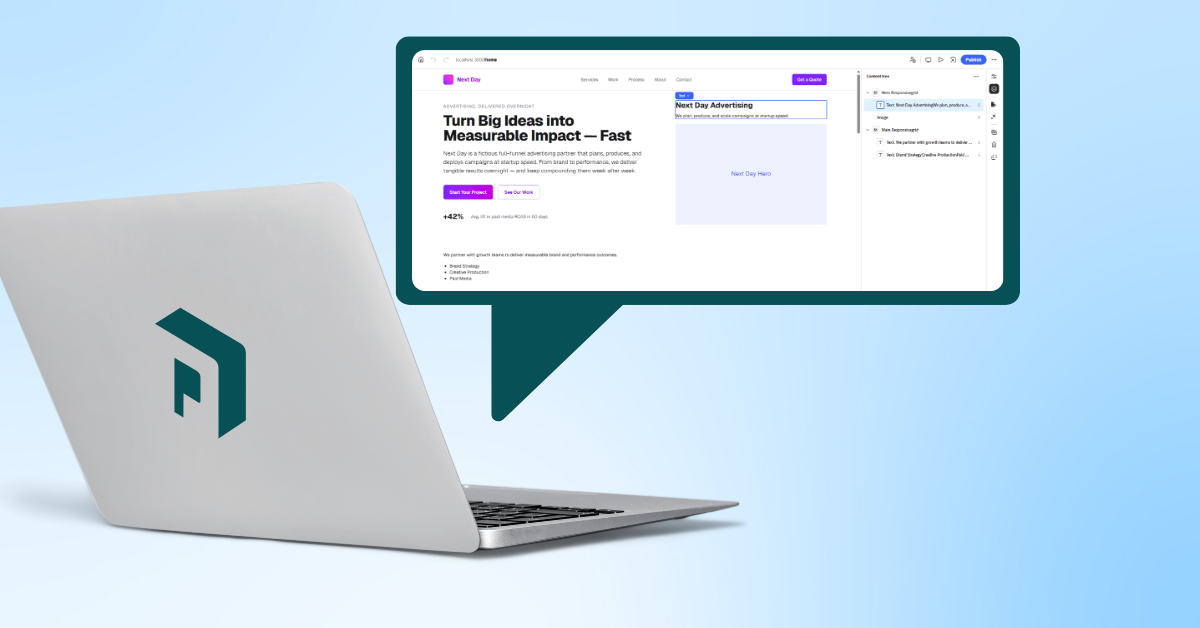
In my last blog, I shared recommendations for the AEM solutions that are available for headful and headless content. I also revisited the headless problem statement since we’re now seeing new industry drivers pushing some teams towards a headless approach. The traditional means of delivering headless via content fragments had some significant limitations compared to a headful experience. That blog also discussed how using page-based resources for headless content resolves many of these limitations. Now, let’s go over how to do it!
Headless Page-based Authoring Tutorial Preface
This tutorial assumes that you have a basic understanding of Universal Editor’s purpose and AEM’s architecture. It is also not intended to be a comprehensive solution design for the AEM-App integration nor a complete Universal Editor tutorial. Considerations like instrumentation details, caching, app security, and which authoring options are made available are beyond the scope of this tutorial.
Step 1: Enable AEM Page Content for Export
You can certainly use the pre-configured model JSONs of AEM Core Components. However, they have several fields that are not relevant to my downstream application, like gridClassNames and allowedComponents.
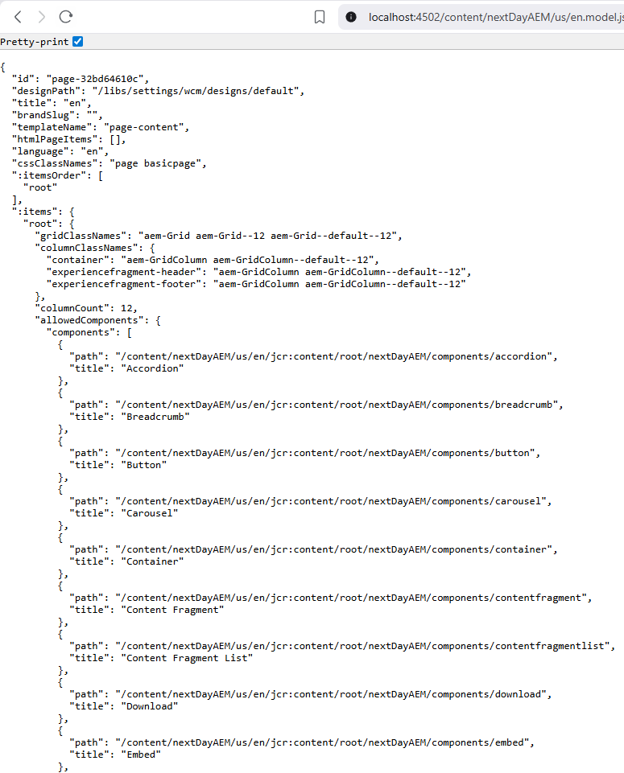
So instead, I prefer custom Sling Models. This gives us a granular level of control over which fields are exposed to our downstream application.
Start by creating a Sling Model for your Page component. Configure the @Model annotation to utilize SlingHttpServletRequest.class as an adaptable so it can serve web requests to a .model.json path and match the resourceType property to the resourceType of your Page component. Configure the @Exporter annotation to use the Jackson library and support a JSON extension for export.
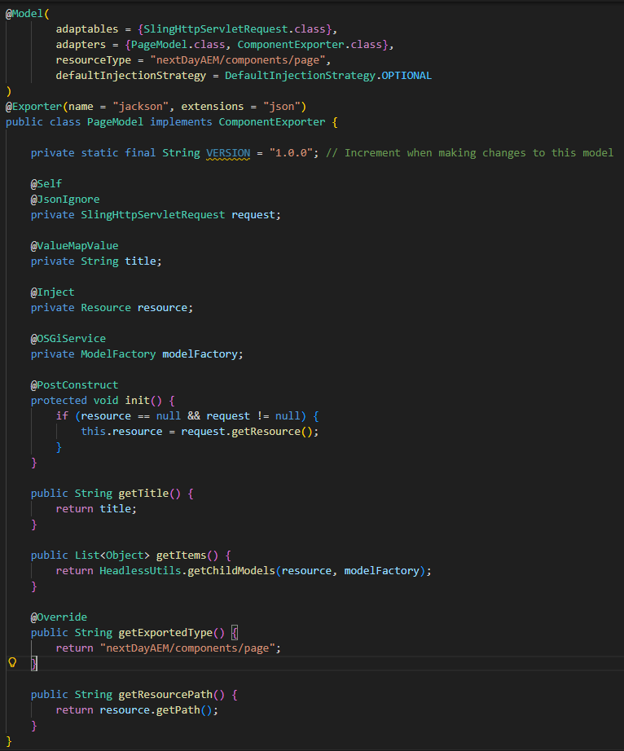
You’ll notice that I’ve created a getItems method that returns a list of objects. This method utilizes a custom HeadlessUtils method that looks for (almost) all children resources of the Page and adapts them to their matching model based on their sling:resourceType. This is very important, as we want each child component to export its JSON based on its own model, not relying solely on the model of the parent.
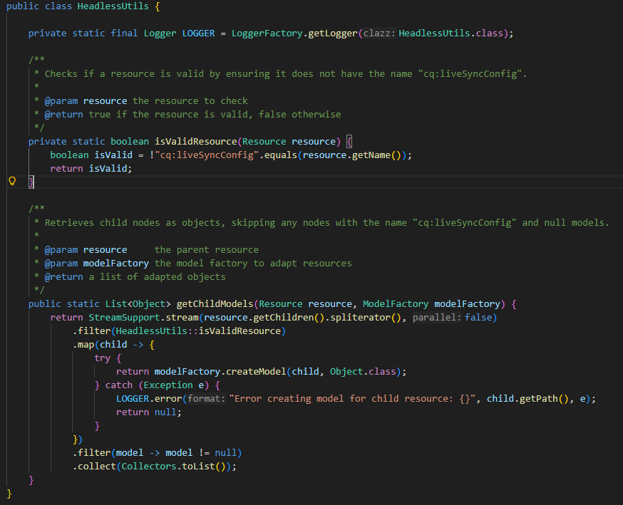
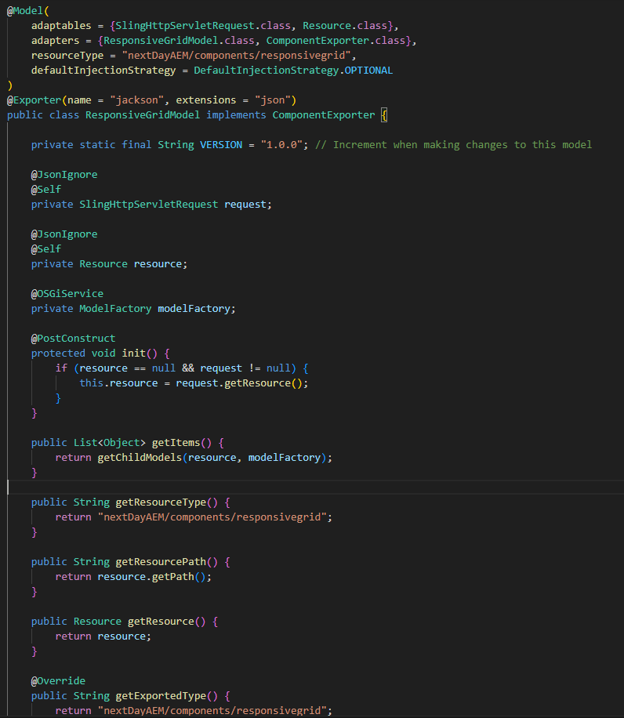
I can re-use this pattern for other container components, components like Responsive Grids or Columns that have any number, names, and types of children.
Then I can similarly configure Sling Models for all components that will appear on my page. The primary difference in how I configure these other component models is that they also need to be adaptable from a Resource in order to be exported by the getItems method or other resource-based retrieval.
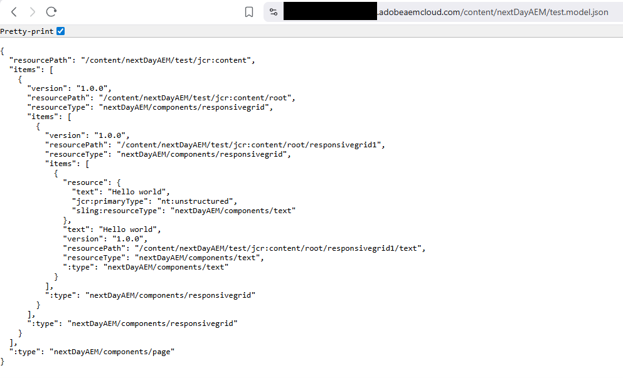
Once I have done that, I can load the export of any Page that uses this model as JSON.
Step 2: Consume the Page Content Downstream
For this example, let’s create a small connector library to AEM using JavaScript. Ultimately this could be run server-side or client-side and rendered however I like. The purpose here is to show that regardless of what downstream app I have, I can use a simple REST-based GET to retrieve the data.
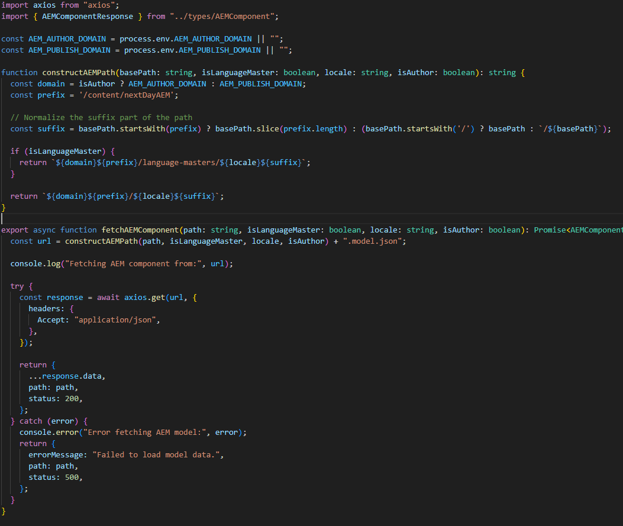
You may notice within the code here that I’ve abstracted out the concept of a full AEM path from the rest of my application. This is because I don’t want to force the downstream application to adhere to a specific route structure. Perhaps in my app, locale is determined by the domain and not the application route.
Further, though I want to display published content on production, I still want to edit content in the AEM author environment before I review and publish it out. If I don’t have an “author” version of my downstream app, I need a different means to instruct the app to pull from the author environment. So I use 4 key parameters:
- The matching AEM base path – This comes statically from my route. I do not allow open-ended user-editable paths for security reasons.
- (MSM support) Do I want to view the language-master or the rolled out live-copy?
- (MSM support) What locale am I in?
- Am I currently authoring?
The latter 3 act as flags which modify the base path. These flags could come from URL parameters, session storage, cookies, etc. In my case, I use URL parameters because I do not want cached AEM content while authoring.
Now, in a real implementation, to access page content in an author environment, my code needs to authenticate to AEM. This can be done via a technical account (preferred) or temporary developer token. Select one of the options linked, follow the instructions, and then come back.
Publish environment content is typically public and therefore does not require an authentication token.
Step 3: Configure AEM to Open Pages in Universal Editor
Now that I have my Page Model rendering in my downstream application, I can configure AEM to open pages of a particular path and sling:resourceType in Universal Editor. This is done by adding an OSGI configuration for the Universal Editor URL Service, which you can also read more about in Adobe’s documentation.

The mappings field has two parts: the parent path for which the Universal Editor should be opened and the target downstream application domain. [parentPath:applicationDomain]
The resourcetypes field defines the sling:resourceTypes that should be opened in Universal Editor. In our case, this is our page component.
The aemDomain field signifies that the Universal Editor should be opened on the same domain as AEM. This is critical, as being on the same domain allows sharing our user’s Adobe IMS login token with Universal Editor. This login token is later used by the Universal Editor to write back our authoring changes to the JCR.
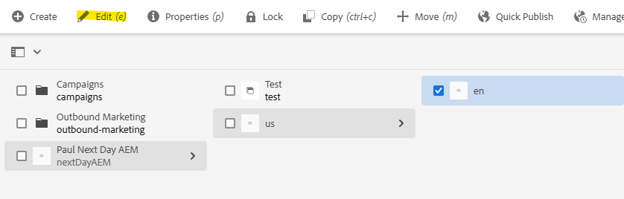
Now authors can click the Edit button in AEM Sites Admin and have the “page” open in the context of the downstream application with Universal Editor.
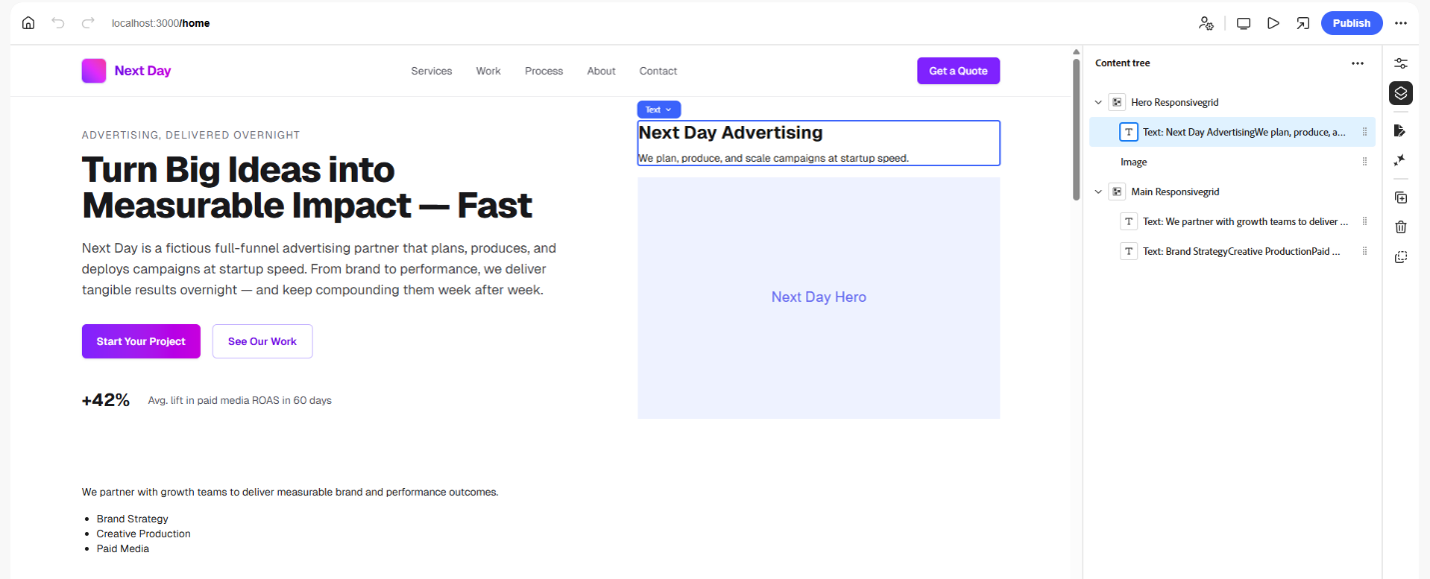
This one step helps close the loop for authors. We’ve moved Universal Editor authoring as a separate domain authoring tool to integration directly with AEM. It also allows authors to continue to think about downstream app routes as “pages” in AEM even though they aren’t being rendered by AEM.
As an aside, you might notice that I’ve specified a /preview route in the downstream application; why did I do that? AEM doesn’t know which downstream app route to open for a given page. All it can do in this integration is pass details like the AEM content path.
As I said earlier, I don’t want to force my downstream application to adhere to a specific route structure. I certainly could do that; I could update the mappings field to “/content/nextDayAEM:localhost:3000/${path}”.
This would make the page /content/nextDayAEM/language-masters/en_us open like localhost:3000/content/nextDayAEM/language-masters/en_us instead. But now my app has to handle any number of route combinations.
So instead I use a common /preview path and let the downstream application figure out what route maps to the aemPath parameter and do an internal redirect, passing those 4 key parameters I identified earlier. If I’ve configured everything correctly, the downstream route + parameters should match exactly 1 AEM page.
Step 4: Write Authored Content Back to AEM
Now move on to instrument the downstream application for Universal Editor. This step involves loading the Universal Editor script, adding data-aue-* attributes to your downstream app components, and adding JSON configuration files. All of that really requires its own tutorial. So I’m going to send you over to Adobe to explain that part, but note that this example uses content fragments. The only major difference in this instrumentation for page-based resources is in the Component Definition JSON, where you should specify the plugin property as “aem” :{ “page”: {..} } instead of “aem” :{ “cf”: {..} }.
Now that all of that is complete, I should be able to log in to AEM and edit a “page.” As far as the authors are concerned, all that’s changed is a new page editor experience. This has far more ramifications than you might expect at first glance. Let’s review the headless challenges we identified from last week.
- How does an author track content downstream from the CMS? Content is now tracked 1:1 with a “page” that matches a downstream route.
- Useful AEM Page tooling is not available out of the box for Content Fragments. We’re now able to use Page-based tooling like link browsing, asset page references, link rewrites on moves, page launches, MSM, etc.
- Link checker no longer functions, as AEM does not have any inherent knowledge of the downstream routes. Though AEM can’t directly check the downstream routes, it can check AEM page-to-AEM-page links. You can have authors link them as AEM paths via the page browser and use the same route mapper you developed in Step 3 to render the links.
- Downstream applications pull in fragments by name or by query. Whereas Content Fragments had to have unique names, Pages, due to page hierarchy, can always match the route name.
- Existing AEM authors are typically more experienced with creating and managing pages instead of content fragments. Fixed.
- It creates a platform disconnect. Authors must navigate to AEM to create Content Fragments but navigate to the downstream application or the Universal Editor to view changes in context. Universal Editor now exists on the same domain as AEM. It looks like part of AEM, not a separate tool.
In other words, many of the challenges we faced with a headless AEM experience are no longer relevant when we use page-based resources as the source. We’re able to leverage the strengths of traditional AEM Page Tooling because, as far as AEM and JCR are concerned, this content exists as real pages in AEM, even though all rendering can take place outside of AEM.
I hope this makes you as excited as I am, as Headless experiences just got a whole lot easier to manage!
What’s Next?
Have a tutorial you’d like to see next? For more information on how Perficient can implement your dream digital experiences, we’d love to hear from you. We’re certified by Adobe for our proven capabilities, and we hold an Adobe Experience Manager specialization (among others).