
Guide to Setting Up VBA in Excel
VBA (Visual Basic for Applications) is an essential tool for automating repetitive tasks and creating custom solutions in Microsoft Excel. This Blog will walk you through the steps to set up VBA and get started with your first macro.
Step 1: Enable the Developer Tab for VBA in Excel
To use VBA in Excel, you must first enable the Developer tab. Here’s how:
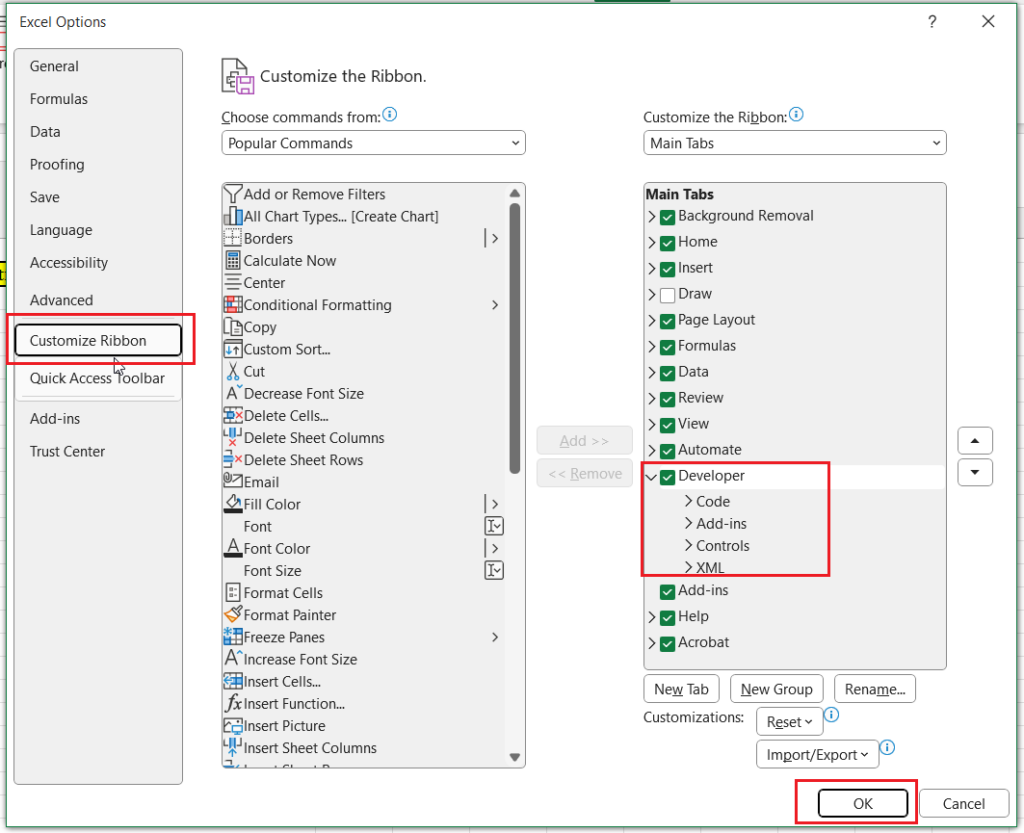
- Open Excel and click on the “File” menu in the top-left corner.
- Select “Options” from the menu.
- In the Excel Options dialogue, choose “Customize Ribbon.“
- Under the “Main Tab” section on the right, check the box for “Developer” and click “OK.”.
Step 2: Open the VBA Editor and Start Writing Code
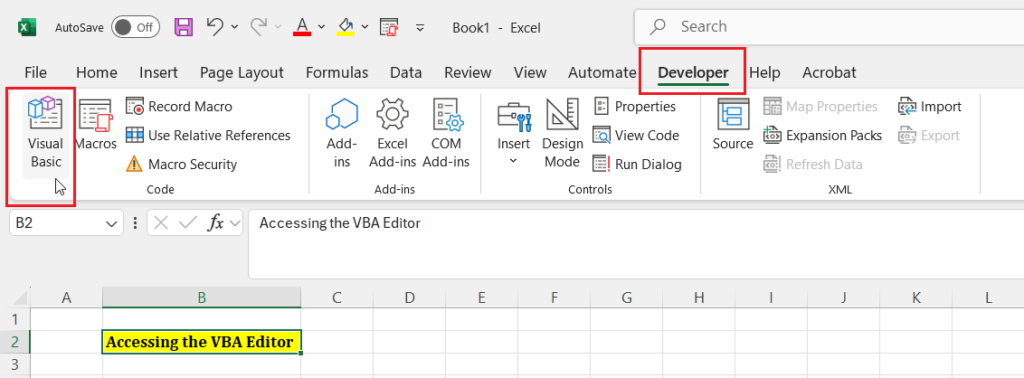
Once the Developer tab is visible, you can access the VBA editor:
- Go to the “Developer” tab on the Excel ribbon.
- Click on “Visual Basic” in the **Code** group. Alternatively, press “ALT + F11” to open the VBA editor directly.
Step 3: Add a New Module for VBA Macros
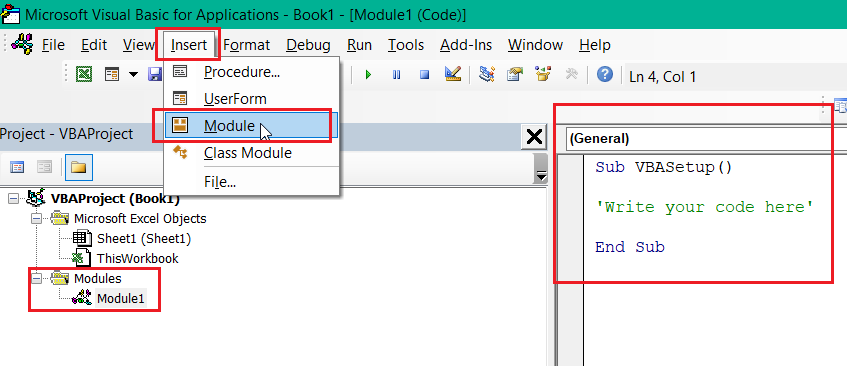
Before you can start writing VBA code, you need to add a module:
- In the VBA editor, click on the “Insert” menu.
- Select “Module” from the dropdown. A new module will appear in the Project Explorer.
Step 4: Create Your First Macro in Excel with VBA
With the module ready, you can begin coding. Here’s an example of a simple macro that displays a message box:
Sub ShowMessage()
MsgBox "Welcome to VBA!"
End Sub
When executed, this macro will show a message box with the text “Welcome to VBA!”.
Step 5: Running Macros in Excel: Execute VBA Code
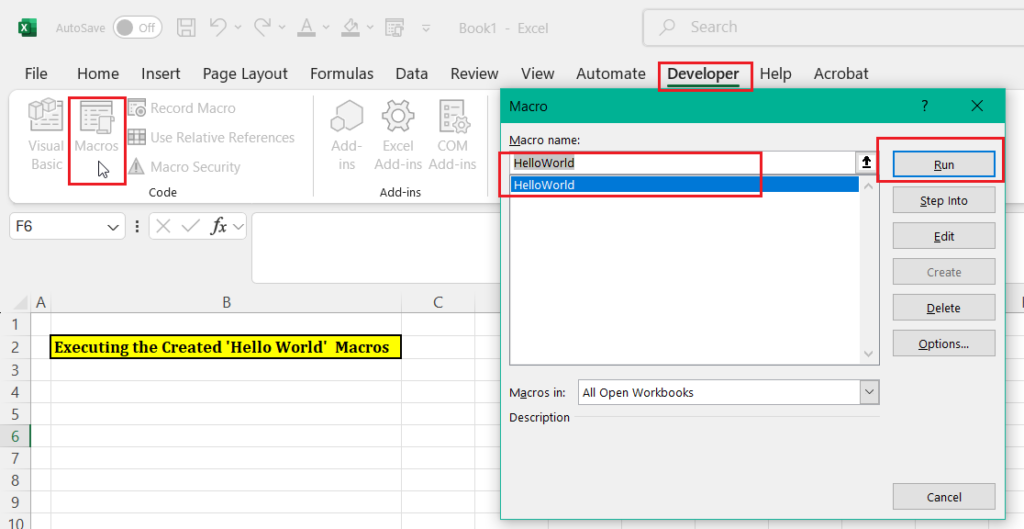
To execute your macro, follow these steps:
- Close the VBA editor to return to the Excel window.
- On the “Developer tab,” click Macros in the Code group.
- Select the macro you wrote (e.g., `ShowMessage`) from the list and click “Run.”.
Conclusion
You’ve now successfully enabled VBA, written your first macro, and executed it in Excel! VBA is a powerful tool that can save time by automating repetitive tasks and enhancing your spreadsheets. As you continue to explore VBA, you’ll discover advanced capabilities that can transform your workflow and boost productivity.
To further ensure the security of your macros, it’s essential to know how to enable or disable them in Microsoft 365 files. You can refer to the below post:
Enable or disable macros in Microsoft 365 files
Happy reading and automating!