
Sitecore has a feature called scheduled tasks that allows you to schedule routine tasks like triggering some emails in an interval or scheduling the publishing of an item etc. It is a straightforward approach to run code logic at defined intervals.
Sitecore Scheduled Task Step-by-Step
We can configure scheduled tasks in Sitecore under the location /Sitecore/System/Tasks.
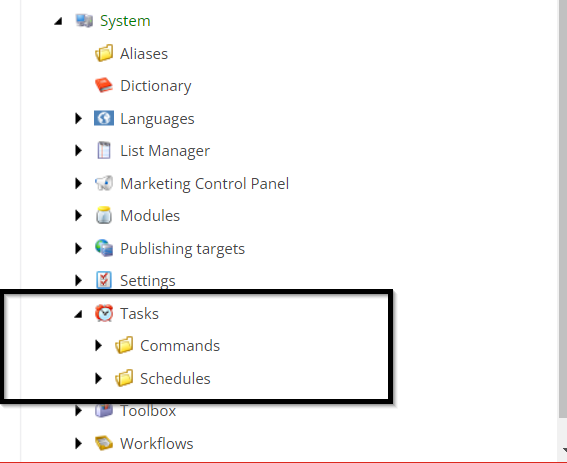 There are two types of Sitecore items in the Sitecore content tree, or two components, that make up task scheduling.
- Commands-This is the logic (code) that must be execute when the scheduler executes the TASK.
- Schedules-This contains information on when a command should be called, at what time interval, and when it was last run.
There are three steps to creating and scheduling tasks:
Step 1: Write the Code to be Executed
Example: We have created a class called SendReminderEmail and a method called Execute within it.
The following method is called each time the scheduler runs within a specified interval, and the code it contains is executed.
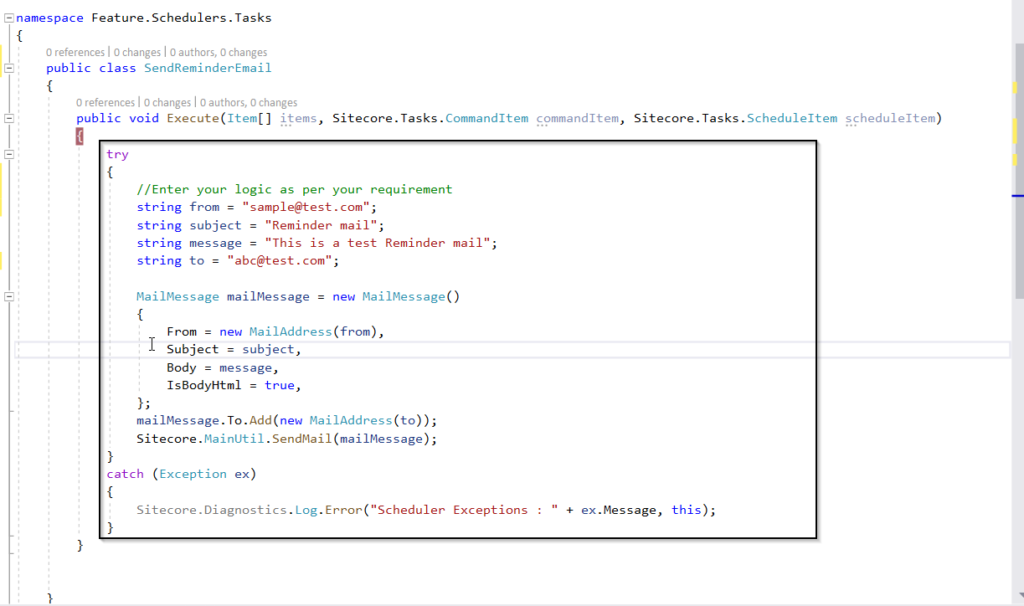 Please write your logic based on your requirements.
Step 2: Creating a Command
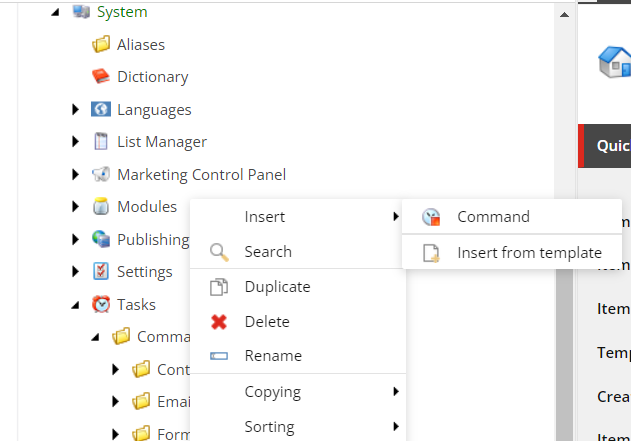
Create a new command named SendReminderEmail using the template from the path – /sitecore/templates/System/Tasks/Command.
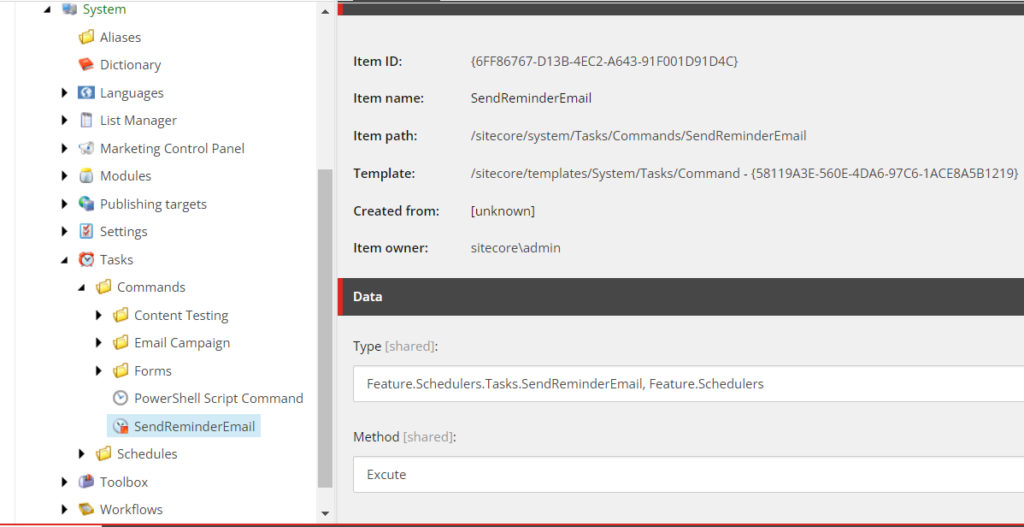
Enter the assembly-qualified type in the Type field and the method name in the Method field.
Step 3: Creating a Scheduler
We have two kinds of schedulers:
- Powershell Scripted Task Scheduler
- Schedule
Sitecore Scheduler offers a PowerShell Scripted Task Scheduler option if we need to run PowerShell scripts as schedulers refer the article Create a Scheduled Task to Run PowerShell Script with Sitecore Task Scheduler / Blogs / Perficient
In this, we’ll create a schedule.
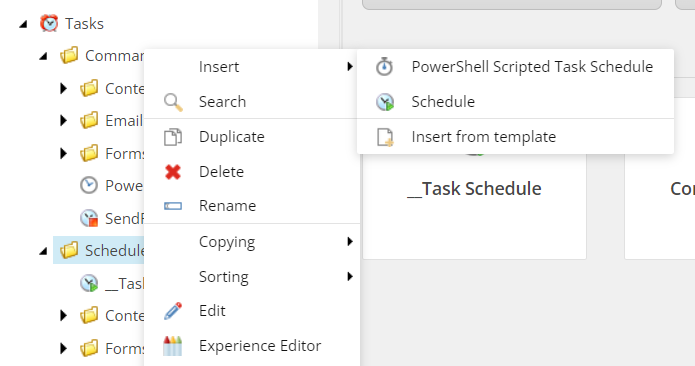
Create a new scheduler named SendReminderEmailSheduler using a template from the path – /sitecore/templates/System/Tasks/Scheduler.
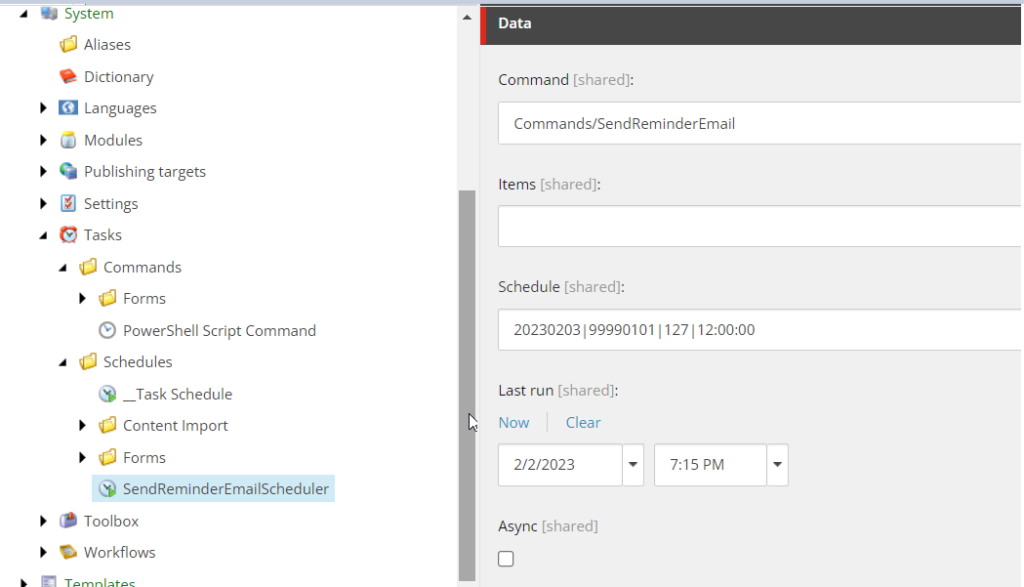
Fill out the content section with information for the newly created scheduler.
- Command field: Select/Specify the command path. (Command created in the earlier step)
- Schedule field: Specify the time, i.e., how frequently the job should run.
- Items field: This is where we declare the Sitecore items array if we wish to populate it in our class method.
- Last Run: Indicates the previous run date/time value.
- Async field: By checking this box, the command will run asynchronously
- Auto remove field: We can use this field to remove the schedule definition item automatically when the task expires.
There will be several piped (|) values in the Schedule field.
20230203|99990101|127|12.00:00
Date of Start: 20230203, Date of expiration: 99990101
Below are the days of the week: Calculate based on the number of days in the week.
- Sunday = 1
- Monday = 2
- Tuesday = 4
- Wednesday = 8
- Thursday = 16
- Friday = 32
- Saturday = 64
Assume I want to run the job every day. It will be (1+2+4+8+16+32+64) = 127 (Sunday + Monday + Tuesday + Wednesday + Thursday + Friday + Saturday).
The task’s minimum run interval in HH.MM.SS format
The task is now scheduled to run at the specified intervals.
I hope you found this beneficial.