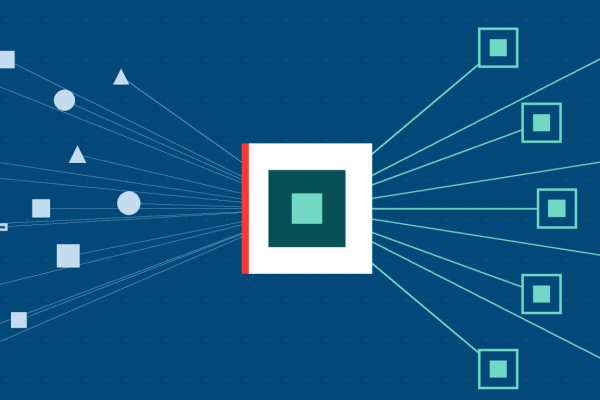

Three tools that cover the full build path — Google Stitch for design, Google AI Studio for prototyping with AI, and Claude Code for shipping the actual code.
How to Read This
The three tools below sit at three different points of the same journey. Stitch turns an idea into screens you can look at. AI Studio turns an idea into a working AI prototype you can click. Claude Code turns a decision into code that’s committed to your repository. Used together they compress the distance from “what if we built…” to something real.
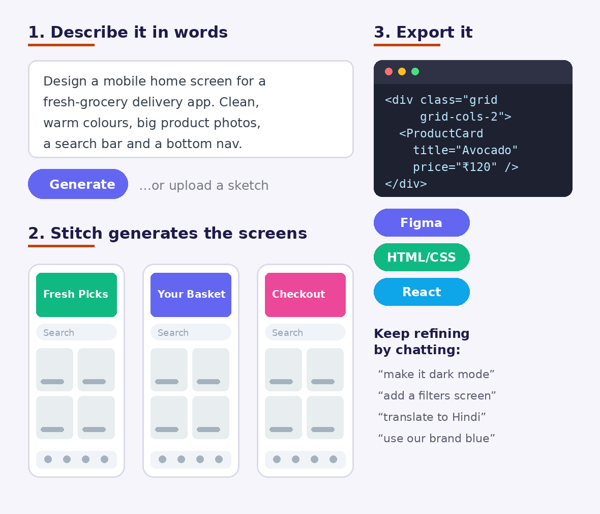
Each section shows what the tool looks like in use, lists what it does, and walks through two concrete scenarios. The screenshots are illustrative mockups of the workflow, not captures of anyone’s account — the intent is that someone who has never opened these tools can look at a page and understand what happens.
1. Google Stitch — Describe a Screen, Get the Design
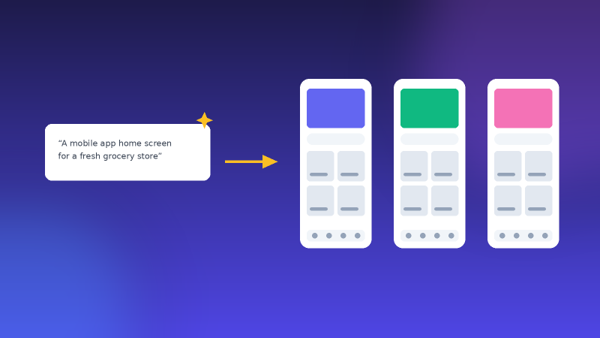
Stitch is Google’s AI-powered UI design tool, built by Google Labs and powered by Gemini. You describe the interface you want in plain language — or upload a hand-drawn sketch or a screenshot — and it generates high-fidelity screens for web or mobile. From there you keep refining conversationally: ask for a darker theme, a different layout, an extra screen, and it updates the design.
The reason it matters isn’t just speed of mockups. Stitch closes the gap between design and development: the same screens can be exported to Figma for a designer to refine or exported directly as front-end code (HTML/CSS, Tailwind, React) for a developer to build on. That removes the usual handoff step where a design has to be rebuilt from scratch in code.
What It Looks Like in Practice
Key Features
- Text-to-design: describe the screen in normal language and get a complete, laid-out interface with colours, spacing, and components.
- Image-to-UI: upload a napkin sketch, a wireframe, or a competitor’s screenshot and get a clean, editable design in that direction.
- Theme controls: switch light and dark mode, set primary colours, corner radii, and fonts from a sidebar — changes cascade across every screen at once.
- Annotate: mark up a generated screen with comments and visual notes; the AI reads the annotations and applies the changes.
- Interactive prototyping: link screens into a clickable flow so a journey can be walked through rather than just described.
- Export both ways: push designs to Figma for design refinement, or take the generated front-end code straight into development.
Use Case in Practice
| EXAMPLE 1
Getting a concept in front of stakeholders the same day → A stakeholder asks what a new self-service portal might look like. Normally: book a designer, wait a week for mockups. → Describe the portal in a few sentences — the screens needed, the audience, the tone. → Stitch generates the screens; use Theme controls to match brand colours and fonts. → Link the screens into a clickable flow and share it in the afternoon meeting. Result: The conversation moves from abstract debate to pointing at real screens, in hours instead of a sprint. |
| EXAMPLE 2
From whiteboard sketch to developer-ready design → A workshop ends with a whiteboard full of rough wireframes — useful to the people who were there, unusable to anyone else. → Photograph the sketches and upload them to Stitch as image input. → Stitch converts each sketch into a clean, consistent, high-fidelity screen using one shared theme. → Export to Figma for the design team to refine, and hand the generated front-end code to developers as a starting scaffold. Result: Workshop output stops dying on the whiteboard and becomes something the team can actually build from. |
A practical note: Stitch is still a Labs-stage product, so results vary — it’s excellent for exploration, early concepts, and getting alignment quickly, but treat its output as a strong first draft rather than a finished design system. Teams that need generated UI constrained to their own production component library will still want a designer in the loop.
2. Google AI Studio — The Fastest Way to Prototype With AI
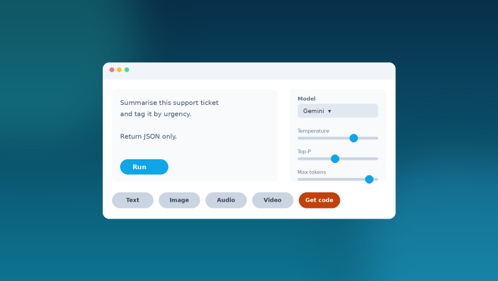
Google AI Studio is a free, browser-based workspace for building with Gemini, Google’s AI model family. At its simplest it’s a prompt playground: write a prompt, pick a model, adjust settings like temperature and max tokens, and see the result instantly — no setup, no billing, no installation. Sign in with a Google account and start.
What makes it more than a playground is what comes after the prompt works. “Get code” exports the exact API call as Python, JavaScript, or cURL so a developer can drop it into a real application. It issues free API keys. It handles text, images, audio, and video in the same interface. And its Build mode can generate and deploy whole working apps from a natural-language description, including full-stack web apps and native Android apps, with Google Workspace integrations wired up automatically.
Key Features
- Prompt playground: test and compare prompts across Gemini models, and tune parameters like temperature and top-P to control how creative or deterministic the output is.
- Multimodal input: work with text, images, audio, and video in one place rather than needing separate tools.
- Get code: export any working prompt as a ready-to-paste API call in Python, JavaScript, or cURL.
- Free API keys: generate a key from a single Google account — no cloud project or billing setup required to start.
- Build mode: describe an app in plain language and have it generated, previewed, and deployed; supports full-stack web apps and native Android apps.
- Large context window: Gemini models in AI Studio handle very long inputs, so entire documents or transcripts can go in at once.
Use Case in Practice
| EXAMPLE 1
Proving an AI idea works before anyone writes a line of production code → The team wonders whether AI could auto-triage incoming support tickets by urgency and topic. → Paste twenty real (anonymised) tickets into AI Studio and write a prompt that classifies each one and returns structured JSON. → Adjust the prompt and lower the temperature until the classification is consistent across all twenty. → Click “Get code” and hand the working API call to a developer to wire into the ticketing system. Result: A day of experimentation replaces a multi-week build-and-hope cycle — and if it doesn’t work, you’ve lost a day, not a quarter. |
| EXAMPLE 2
Building a small internal tool without a development project → A team repeatedly needs the same thing: paste in a long report, get back a summary in a fixed house format. → In Build mode, describe the tool — an input box, a summarise button, output in the required template. → AI Studio generates the app, and it can be previewed in the browser and iterated on by chatting with it. → Deploy it so the whole team can use it, rather than each person re-prompting a chatbot by hand. Result: Small repeated tasks get their own tool instead of sitting in a backlog behind bigger projects. |
3. Claude Code — An AI Agent That Works in Your Codebase
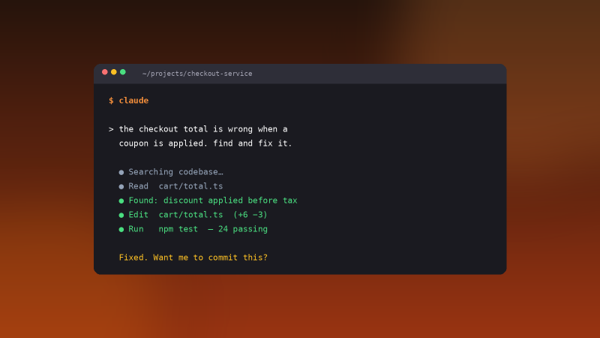
Claude Code is Anthropic’s agentic coding tool. Rather than being a chat window you copy code out of, it runs where the work already happens — in the terminal, in your IDE, in the desktop app, or in the browser — with direct access to your project. You describe what you want in plain English and it plans, reads the relevant files, makes the edits, runs the tests, and tells you what it did.
It works in a loop: gather context, take action, verify results, and repeat until the task is done. You can interrupt and redirect at any point. Because it can run commands and edit files directly, it handles the full task rather than the snippet — finding the bug, fixing it, running the test suite, and offering to commit. It also connects through MCP to outside sources like Google Drive, Figma, Slack, or Jira, so it can read a design doc or update a ticket as part of the same job.
Key Features
- Build features from descriptions: explain what you want in plain English; it makes a plan, writes the code, and checks that it works.
- Debug and fix: paste an error message or describe the bug, and it traces the cause through the codebase and implements a fix.
- Understands the whole project: it keeps awareness of your project structure, so you can ask questions about an unfamiliar codebase and get real answers.
- Takes action directly: edits files, runs commands, runs tests, and creates commits, rather than handing back text for you to paste.
- Works everywhere: terminal, VS Code, JetBrains, desktop app, browser, Slack, and CI pipelines — the same agent across surfaces.
- Scriptable and automatable: it can be piped into and run non-interactively, so routine jobs can run automatically in CI.
- Extensible via MCP: connect it to Google Drive, Figma, Slack, Jira, or internal tooling so it can pull real context into a task.
Use Case in Practice
| EXAMPLE 1
Fixing a production bug in an unfamiliar part of the codebase → A checkout total comes out wrong whenever a coupon is applied, and the developer who wrote that module has left. → Describe the symptom to Claude Code in plain language — no need to know which file is responsible. → It searches the codebase, identifies that the discount is applied before tax rather than after, and makes the fix. → It runs the test suite to confirm nothing else broke, then offers to commit the change. Result: A bug that would have started with an hour of code archaeology is diagnosed and fixed in one pass. |
| EXAMPLE 2
Clearing the maintenance work nobody wants to do → A backlog of small, tedious jobs: lint errors, outdated dependencies, missing tests, release notes nobody has written. → Hand them over in plain English — “add unit tests for the payment module”, “write release notes from the commits since the last tag”. → Claude Code does the work in the repository, running tests as it goes so regressions surface immediately. → For recurring jobs, script it into CI so it runs automatically rather than being asked each time. Result: The maintenance backlog stops competing with feature work for developer attention. |
Where Each Tool Fits
A quick reference for deciding which tool a given task belongs to.
| I need to show someone what a screen could look like | Google Stitch |
| I have a sketch and need a real design | Google Stitch |
| I want to test whether AI can do a specific task | Google AI Studio |
| I need a working API call to hand to a developer | Google AI Studio |
| I need a small internal tool, fast | Google AI Studio (Build mode) |
| I need code written, fixed, or tested in a real repo | Claude Code |
| I need to understand a codebase nobody owns anymore | Claude Code |
Closing Thought
What these three have in common is that they lower the cost of trying something. A design concept, an AI feature, a fix to a messy piece of code — each used to be expensive enough that it needed justifying in advance.