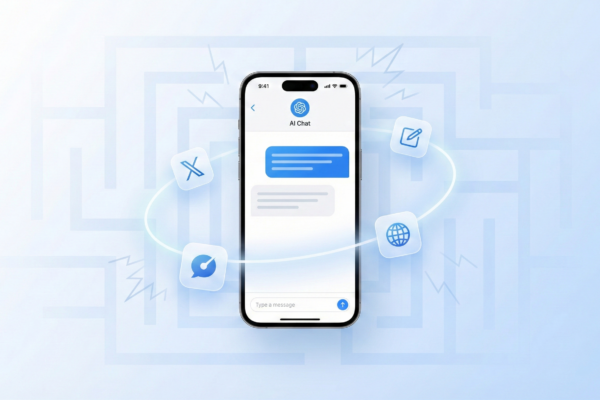
Large Language Models have fundamentally transformed how we work on desktop computers. From simple ChatGPT conversations to sophisticated coding assistants like Claude and Cursor, from image generation to CLI-based workflows—LLMs have become indispensable productivity tools.
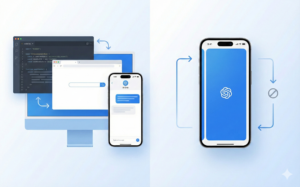
On my Mac, invoking Claude is a keyboard shortcut away. I can keep my code editor, browser, and AI assistant all visible simultaneously. The friction between thought and action approaches zero.
But on iPhone, that seamless experience crumbles.
The App-Switching Problem
iOS enforces a fundamental constraint: one app in the foreground at a time. This creates a cascade of friction every time you want to use an LLM:
- You’re browsing Twitter and encounter text you want translated
- You must leave Twitter (losing your scroll position)
- Find and open your LLM app
- Wait for it to load
- Type or paste your query
- Get your answer
- Switch back to Twitter
- Try to find where you were

This workflow is so cumbersome that many users simply don’t bother. The activation energy required to use an LLM on iPhone often exceeds the perceived benefit.
“Opening an app is the biggest barrier to using LLMs on iPhone.”
Building a System-Level LLM Experience
Rather than waiting for Apple Intelligence to mature, I built my own solution using iOS Shortcuts. The goal: make LLM access feel native to iOS, not bolted-on.
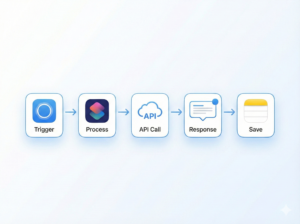
The Architecture
My system combines three key components:
- Trigger: iPhone’s Action Button for instant, one-press access
- Backend: Multiple LLM providers via API calls (Siliconflow’s Qwen, Nvidia’s models, Google’s Gemini Flash)
- Output: System notifications for quick answers, with automatic saving to Bear for detailed responses

Three Core Functions
I configured three preset modes accessible through the shortcut:
| Function | Use Case | Output |
|---|---|---|
| Quick Q&A | General questions, fact-checking | Notification popup |
| Translation | English ↔ Chinese conversion | Notification + clipboard |
| Voice Todo | Capture tasks via speech | Formatted list in Bear app |
Why This Works
The magic isn’t in the LLM itself—it’s in the integration points:
- No app switching required: Shortcuts run as an overlay, preserving your current context
- Sub-second invocation: Action Button is always accessible, even from the lock screen
- Persistent results: Answers are automatically saved, so you never lose important responses
- Model flexibility: Using APIs means I can switch providers based on speed, cost, or capability
The Bigger Picture
Apple Intelligence promises to bring system-level AI to iOS, but its rollout has been slow and its capabilities limited. By building with Shortcuts and APIs, I’ve created a more capable system that:
- Works today, not “sometime next year”
- Uses state-of-the-art models (not Apple’s limited on-device options)
- Costs pennies per query (far less than subscription apps)
- Respects my workflow instead of demanding I adapt to it
Try It Yourself
The iOS Shortcuts app is more powerful than most users realize. Combined with free or low-cost API access from providers like Siliconflow, Groq, or Google AI Studio, you can build your own system-level AI assistant in an afternoon.
The best interface is no interface at all. When AI assistance is a single button press away—without leaving what you’re doing—you’ll actually use it.