
Optimizely CMS (formerly Episerver) is a powerful, enterprise-grade content management system built on .NET that helps developers and content editors collaborate to deliver modern, personalized websites. If you’re a developer new to Optimizely CMS, this guide will walk you through the foundational steps to get started—from installation to basic content modeling.
What is Optimizely CMS?
Optimizely CMS is part of the larger Optimizely Digital Experience Platform (DXP), offering robust content management features alongside experimentation, personalization, and analytics tools. It’s best suited for complex websites requiring flexibility, scalability, and a great editorial experience.
Setting up Your Development Environment
Prerequisites
- Visual Studio 2022 or later (with ASP.NET and web development workload)
- .NET 6 or newer
- SQL Server 2019
- Windows 10 and Windows 11
- Optional – Visual Studio Code 1.70 or later (stable and recent version of Visual Studio Code that supports .NET 6 or later).
Steps to Create an Optimizely CMS 12 Alloy MVC Project
You’ll run all the following commands in Command Prompt or PowerShell (not inside Visual Studio).
The dotnet new epi-alloy-mvc command generates the starter code for you. You don’t need to download anything manually.
- This command lists all installed templates that match “epi”. If nothing shows up, proceed to the next step
dotnet new list epi
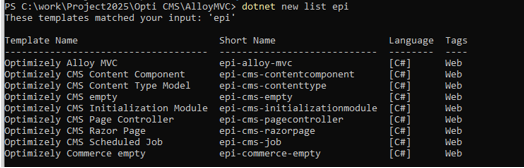
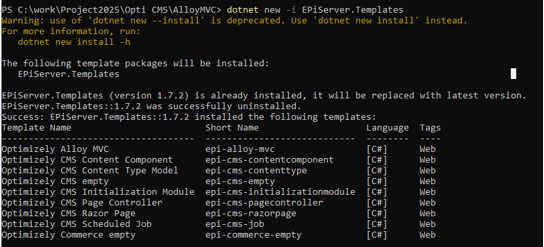
- If the template is not installed, then use the following command to install the Epi template for Opti CMS, including Alloy MVC
dotnet new -i EPiServer.Templates
- Navigate to the folder where you want to create the project; this creates a new Optimizely CMS 12 Alloy MVC site in the current folder.
dotnet new epi-alloy-mvc


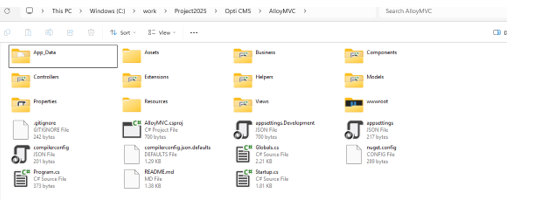
- Once the template is created, open the project folder in VS Code (optional) or Visual Studio (open .csproj file) and build the project. This collects the project and checks for any errors.
dotnet build

- To run the project, use the following command. This starts the web server, and now the site can be viewed in the browser.
dotnet run
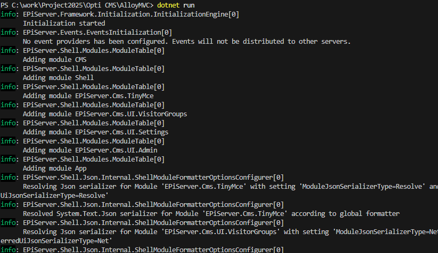
Default port is 5000
Navigate to http://localhost:5000, and register for an admin user.
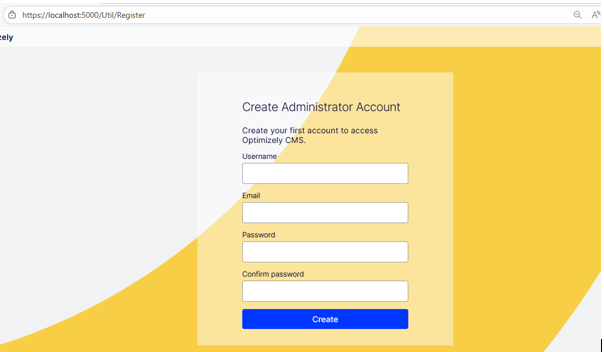
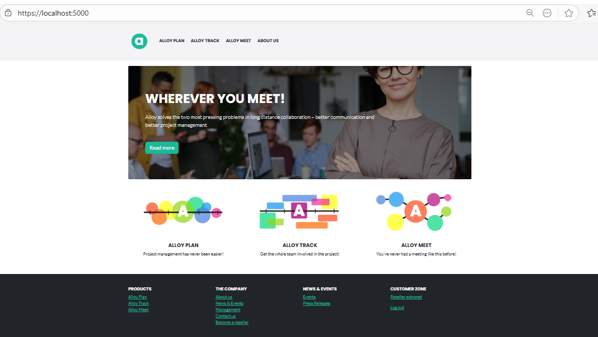
When you create a new Optimizely CMS site using the dotnet new epi-alloy-mvc template, it includes ASP.NET Core Identity with preconfigured admin credentials stored in the database.
Default Credentials (for Alloy MVC Template)
After running the site locally, the admin credentials are seeded into the database during the first run via the Startup.cs or Program.cs configuration logic. We can change this by modifying the seeding logic in Startup.cs or Program.cs to create custom users or connect to a local SQL Server and update the AspNetUsers table.
For the CMS admin, navigate to http://localhost:5000/episerver.